

How to Use NoryBook Shared Wordbooks
Choosing a wordbook is harder than making one. Deciding which words, how many at a time and in what order eats the whole evening. The 『NoryBook』 Custom Words tab holds wordbooks made by people who have already done that work: sets other families pulled from photos or files, and the elementary grade 1 to 6 English Day sets uploaded by NoryBook. Browsing needs no login, and Import copies a set into your library, ready for study mode and games.
Video: browsing the list, the word table, the Import button and the login screen (no sound)
What shared wordbooks are
When you upload a photo or a file in the Custom Words tab and a wordbook is created, it appears in the shared list right away. Other people can see its words and meanings and, if they like it, bring it into their own library. An imported wordbook is a copy, so it lives separately from the original, and it can be edited and published again. In that case the 『source』 shows the nickname of the person who first uploaded it.
As of November 23, 2026 the list holds 61 wordbooks, 60 of them the 『Grade N English Words · Day 1 to 10』 sets uploaded by NoryBook: ten days per grade, 20 words a day. Sets uploaded by NoryBook carry a 『NoryBook』 badge before the title.
Try it this way
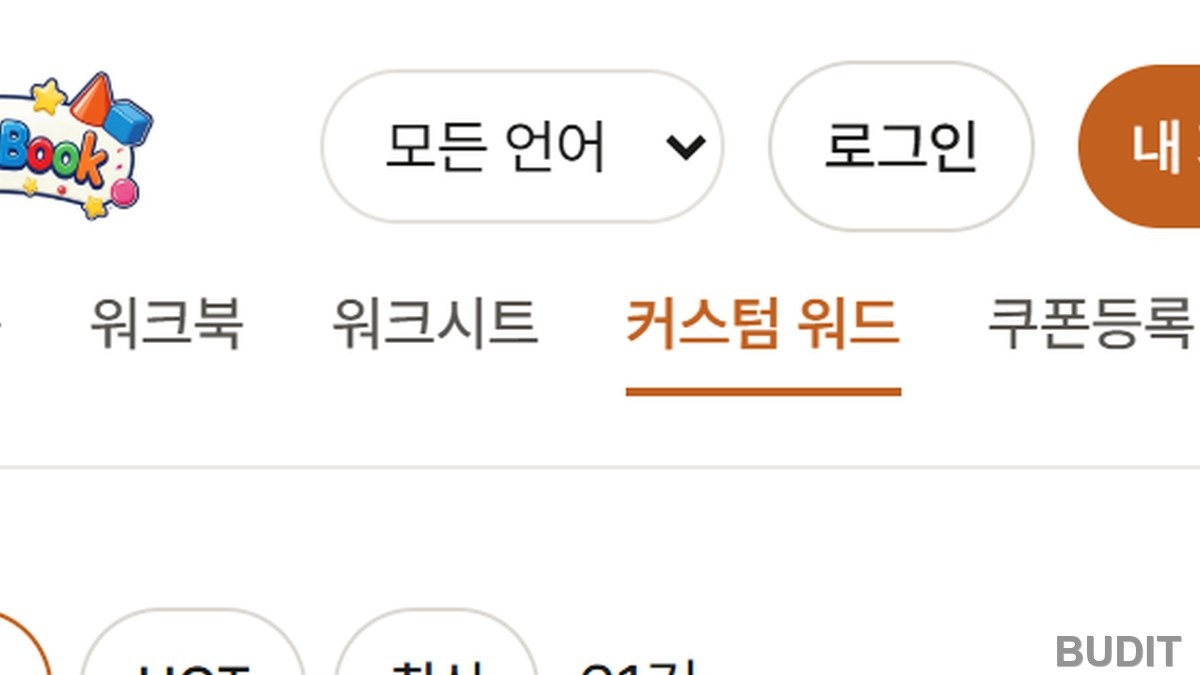
- Tap 『Custom Words』 in the NoryBook header. The list appears straight away. No login needed.
- Change the order with the chips at the top. 『All』 shows everything, 『New』 sorts by upload date, and 『HOT』 by recent imports.
- Tap a wordbook to see its words, meanings and frequency in a table. A 『card』 badge next to a word means a NoryCard picture card exists for it.
- Tap 『Import』. If you are not logged in the login screen comes first, and you return to the same place afterwards.
- The imported wordbook goes into 『My Library』, where study mode, games and quiz PDFs are available.
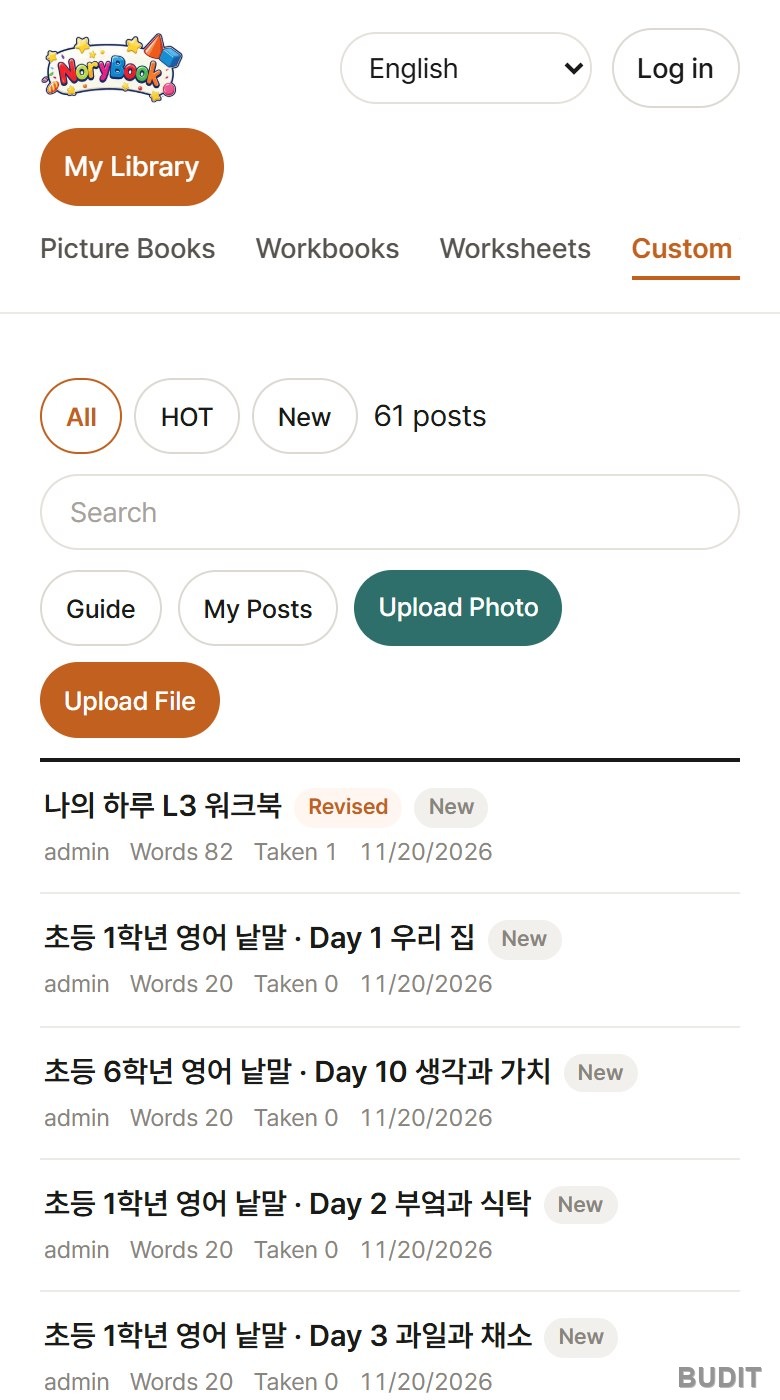
Photo: the shared wordbook list in the Custom Words tab (as of November 23, 2026, phone screen). Each row shows the uploader, word count, import count and upload date, and sets uploaded by NoryBook carry a green 『NoryBook』 badge. Open NoryBook Custom Words
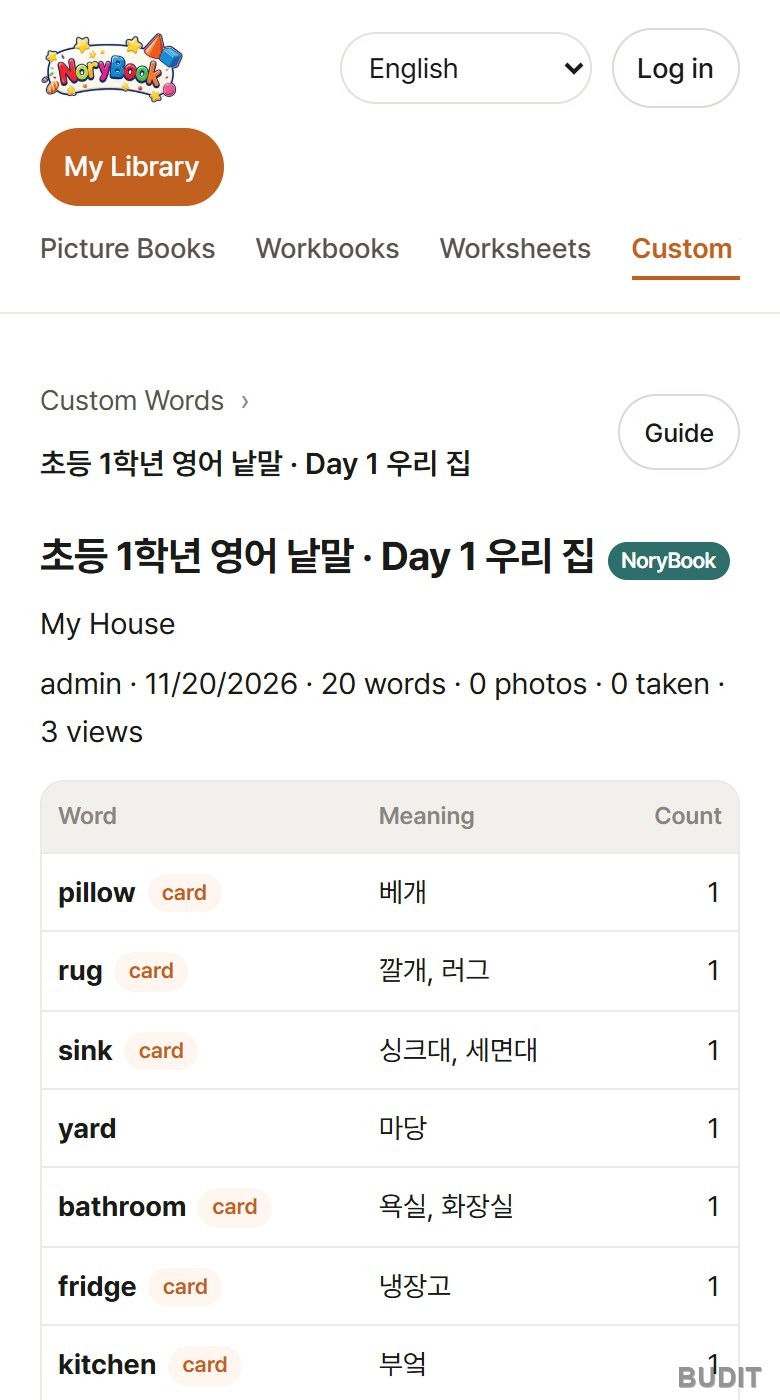
Photo: the 『Grade 1 English Words · Day 1 My House』 detail. Twenty words with meanings in a table; words with a 『card』 badge bring their NoryCard picture card along when imported.
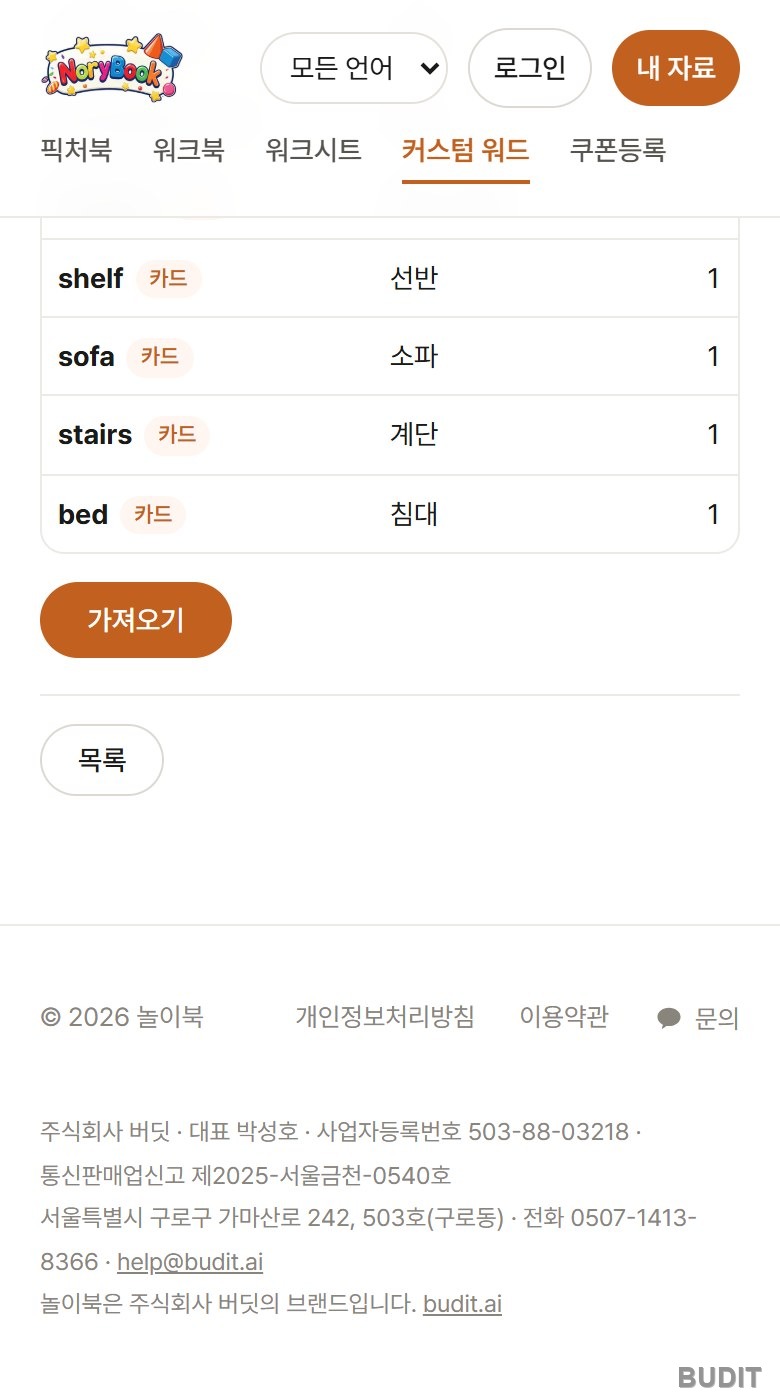
Photo: the 『Import』 button under the table (Korean interface). Tap it to copy the wordbook into your library. 『List』 returns to the shared list.
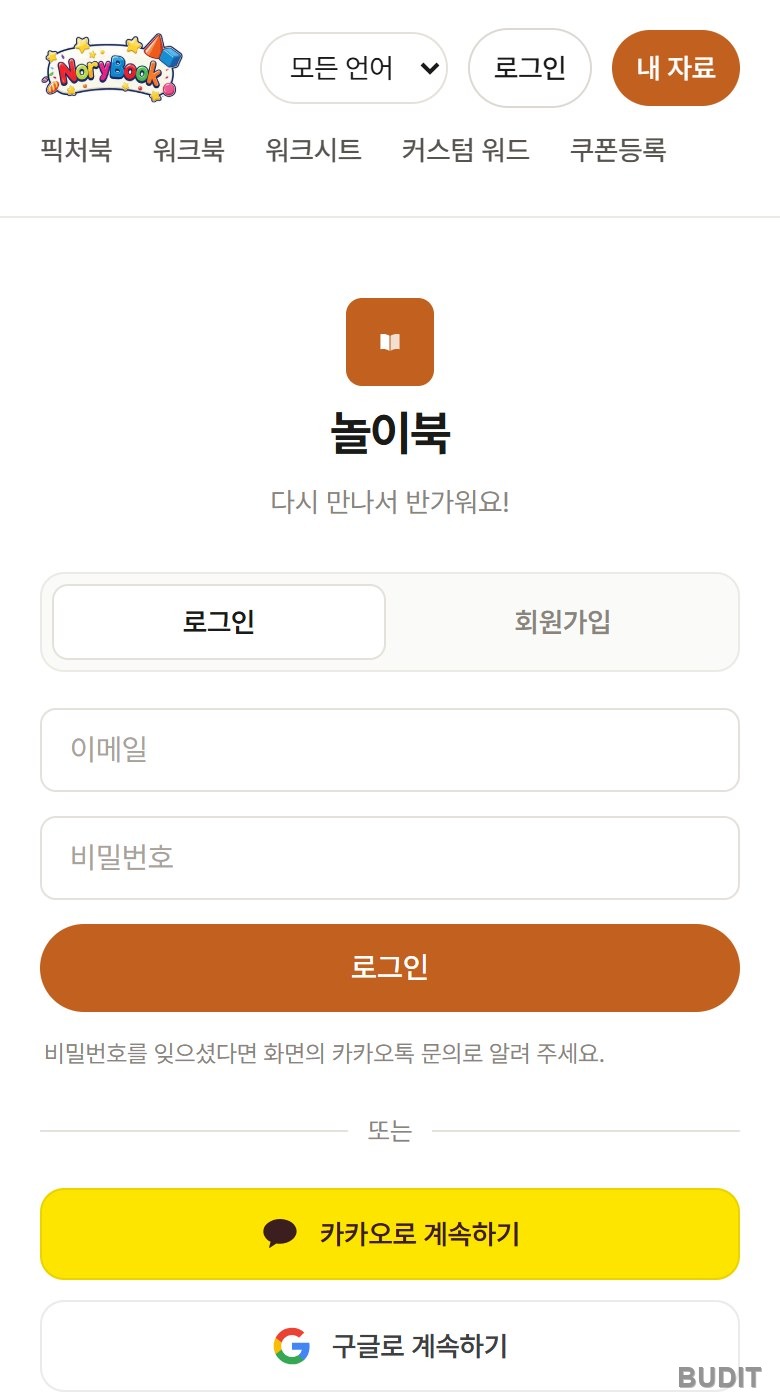
Photo: the screen shown if you tap 『Import』 before logging in (Korean interface). Sign in with a Kakao, Google or Naver account and you return to the wordbook you were viewing.
To publish your own wordbook
- Make a wordbook with 『Upload photo』 or 『Upload file』 in the Custom Words tab. How to do that is in Turn a Photo of Your Home into English Word Cards 『NoryBook Custom Cards』.
- Once created, the wordbook is in the shared list straight away. There is no separate upload step.
- If you fix meanings or remove words and want to show the new version, tap 『Publish』. A revised edition is added, and people importing can choose between the first and the revised edition.
- You set a nickname the first time you share. It appears in the 『uploader』 column of the list.
Good to know
- Anyone can browse; importing needs a logged in account, with a limit of 20 imports a day.
- An imported wordbook is a copy. If the original uploader edits later, yours does not change.
- Imported wordbooks can also be edited and published. The 『source』 then shows the first uploader's nickname.
- 『HOT』 ranks by recent imports and views, so on a young list it may be empty. Use 『New』 or 『All』 in that case.
- A problem wordbook can be reported, and one that gathers reports is hidden from the list.
Try this at home
- Import Day 1 for your child's grade. Twenty words a day is sized to a day's new words plus reviews. The arithmetic is in How Many English Words a Day Is Right for a Child 『Counting with Spaced Repetition』.
- In study mode, cover the meaning and let the child speak first. Leave unknown words and move on.
- The next day, play the matching game with the same wordbook. When yesterday's missed word turns up in the game, that is the review.
- Add one Day a week, and run past Days through games only.
- Publish a wordbook made from photos of your home. When another family imports it, the 『imports』 figure goes up. Children like seeing that.
How Budit continues this
The three steps in the picture at the top are the flow of shared wordbooks.
- 『Browse』: see the list and the words in the Custom Words tab without logging in.
- 『Import』: copy a wordbook you like into your library. Words with a NoryCard picture card bring the card along.
- 『Study and play』: recall and review the way described in Reviewing with Word Cards and Games 『NoryBook Review Features and NoryCard Games』.
Related reading: Turn a Photo of Your Home into English Word Cards 『NoryBook Custom Cards』, Why Game Review Helps Words Stick 『Retrieval Practice and Spacing』
References
- NoryBook Custom Words shared wordbooks. norybook.com/custom-wordbook (61 wordbooks as of November 23, 2026)
Screens are as of November 23, 2026 and features may change.