
English Game Homework in One Link
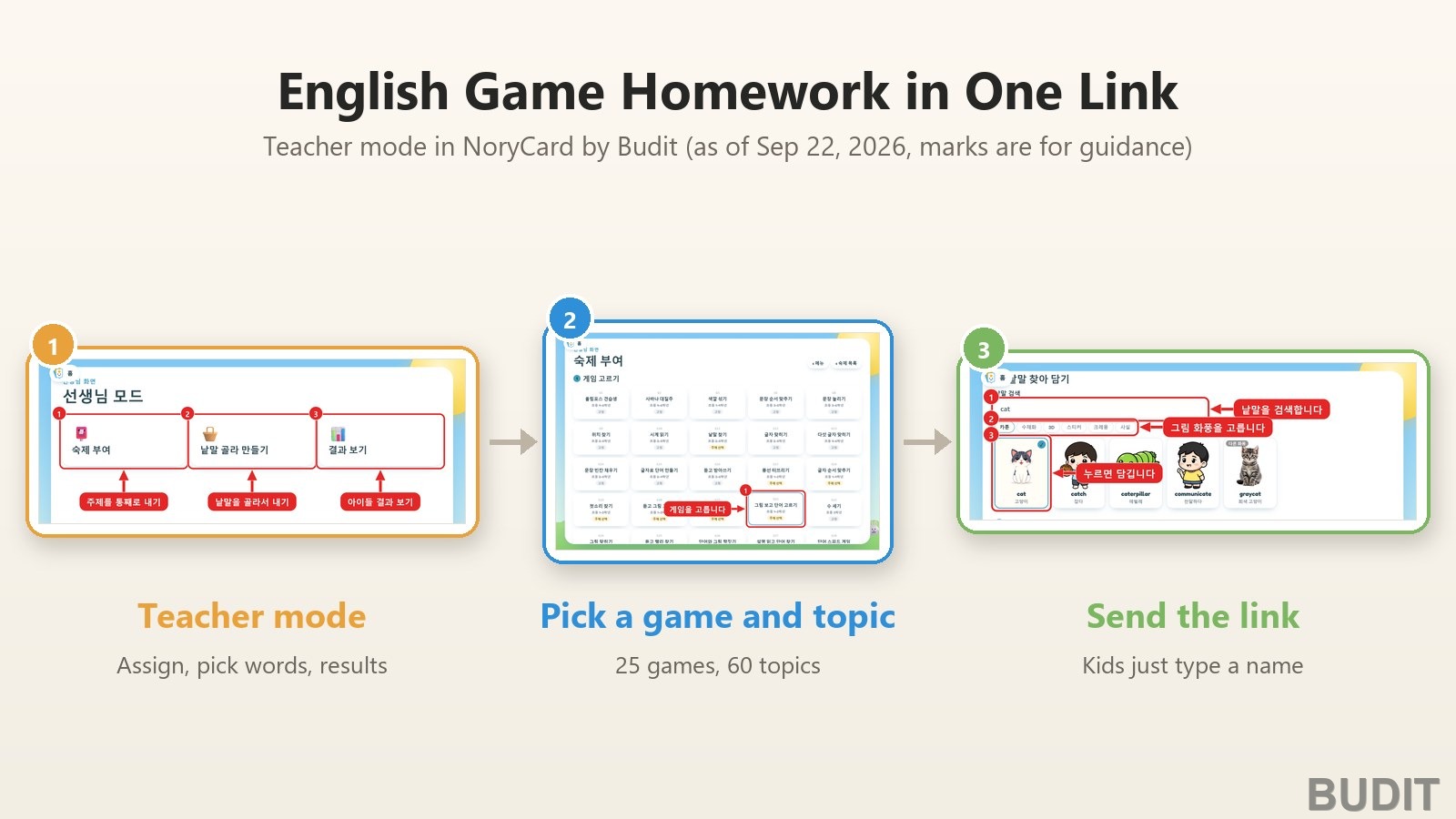
Want to turn this week's words into a game and see who missed which word? 『NoryCard』 teacher mode makes one link from a game and a topic. Kids open the link, type a name and play.
What teacher mode is
NoryCard has 25 English games for elementary students. Teacher mode is the screen where you turn those games into homework. Choose one game and one topic and you get a link for your students. When a student finishes a round, the score and the missed words appear on your screen. Any logged in NoryCard account can use it. There is nothing to apply for. It works the same for a tutor with a class and for a parent giving two kids the same homework at home.
There are only three things a teacher does.
| Menu | What it does |
|---|---|
| 『숙제 부여』 Assign | Pick a game and a topic to make a link. A whole topic goes out at once. |
| 『낱말 골라 만들기』 Pick words | Collect words one by one from any topic and build a game from only those. |
| 『결과 보기』 Results | Read what the students did and download it as a spreadsheet. |
The NoryCard screens are in Korean. The captions below give the Korean label and its meaning.
Getting in
Press 『선생님 모드』 (teacher mode) at the top right of the NoryCard home screen. The same button sits at the top right of the 『게임하기』 (play games) screen. If you are not logged in, the login screen comes first.
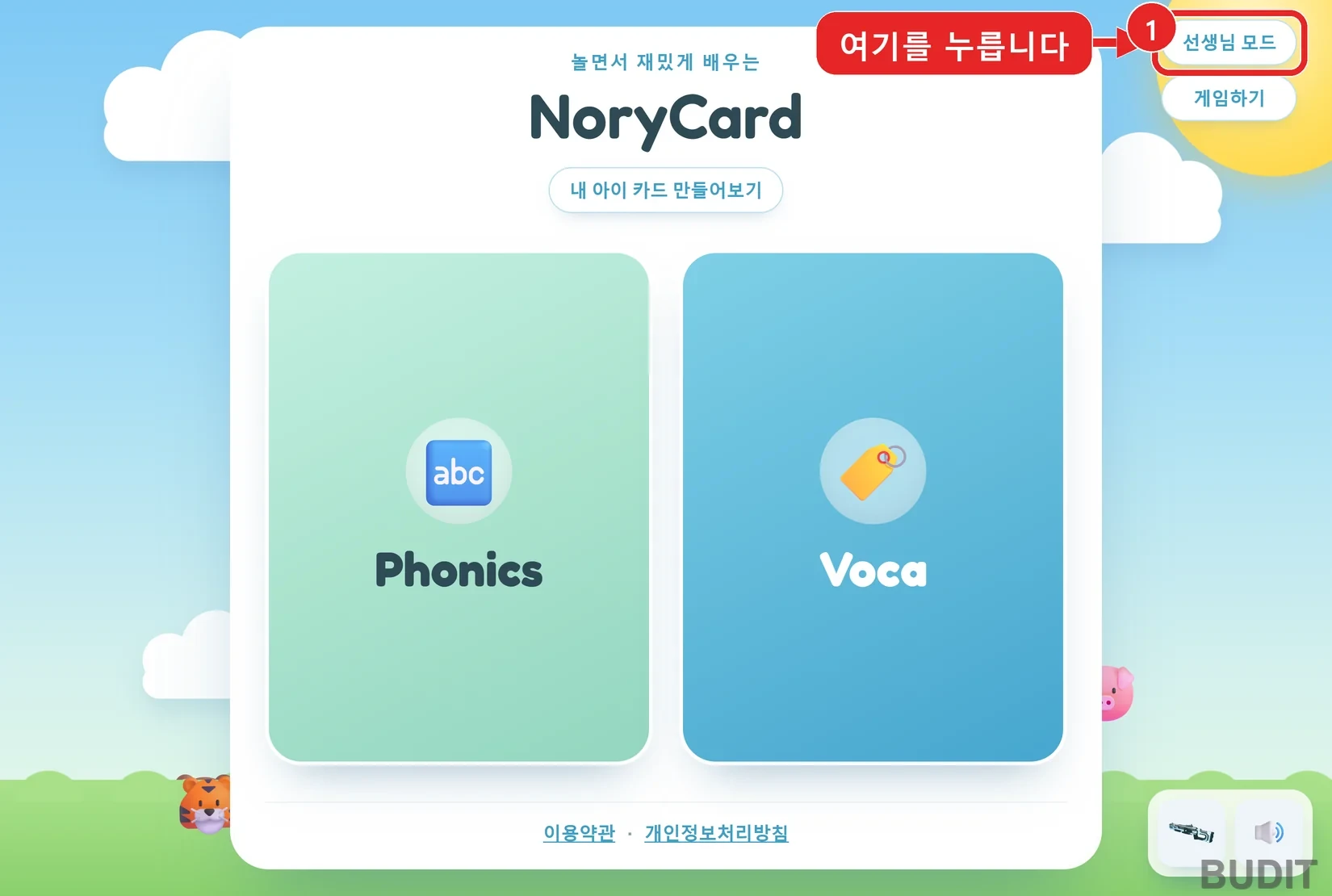
Screen: the 『NoryCard』 home screen (as of Sep 22, 2026). The red boxes, numbers and arrows are guide marks added for this post, here and in the screens below.
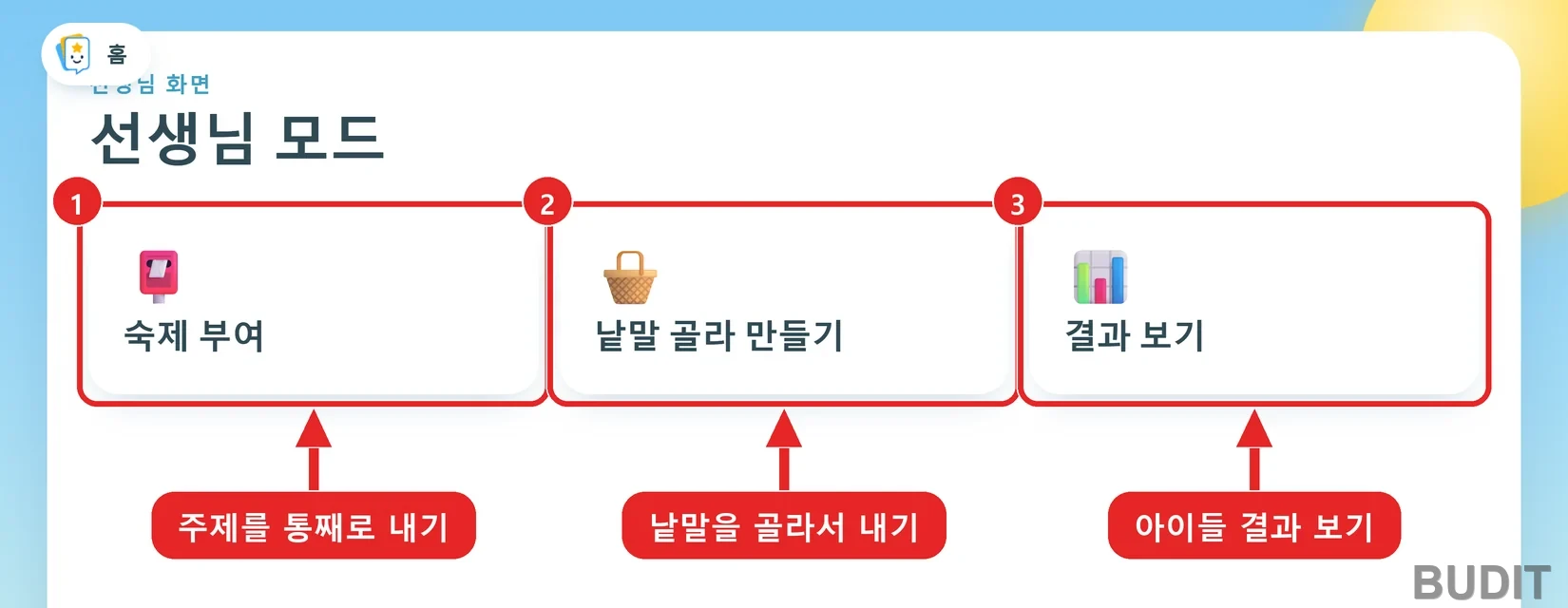
Screen: the three menus in teacher mode. 1 『숙제 부여』 assign a whole topic, 2 『낱말 골라 만들기』 pick words, 3 『결과 보기』 results.
Assign: send a whole topic
This is the fastest way. Open 『숙제 부여』 and press 『+ 새 숙제』 (new homework) at the top right. Three steps follow.
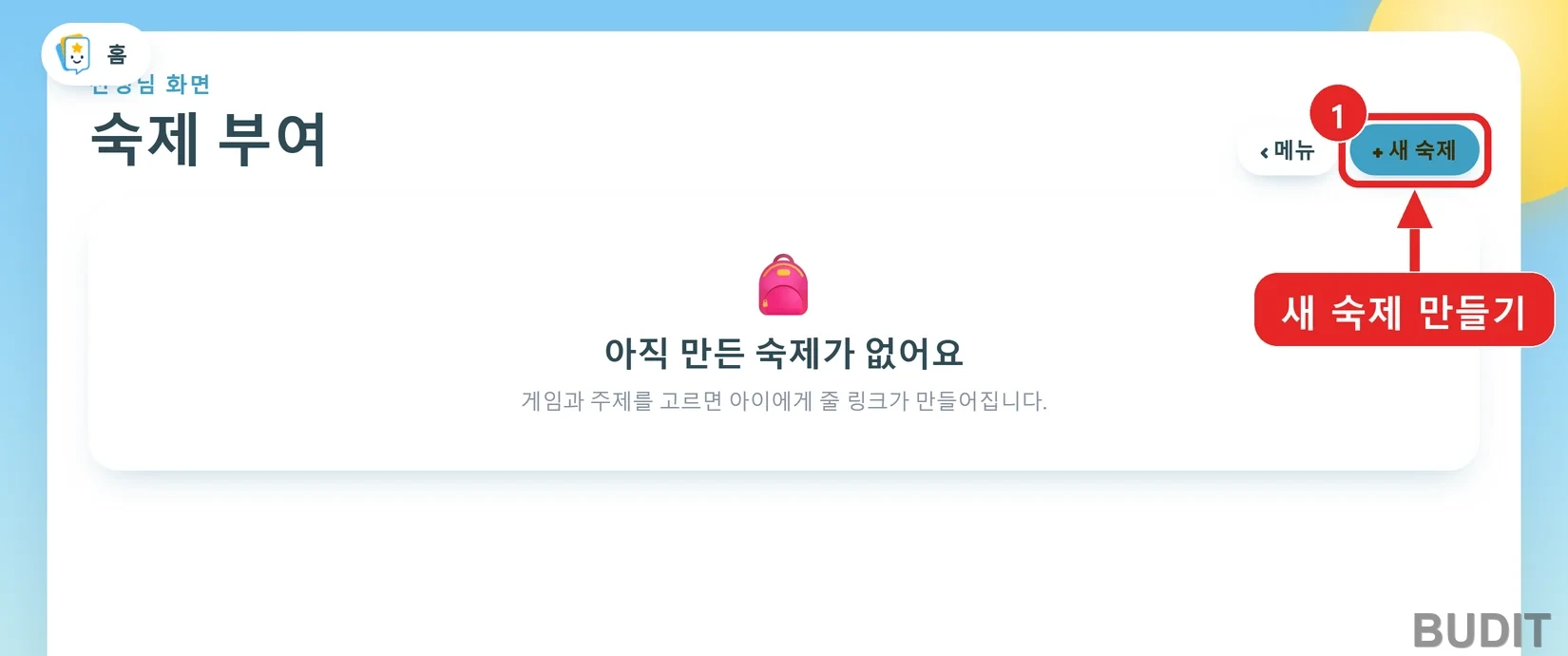
Screen: the assign screen for a teacher who has not made anything yet. Press 『+ 새 숙제』 to start.
Step 1, choose a game. All 25 games appear with a name, a grade range and a kind. There are two kinds. 『고정』 (fixed) games carry their own questions, so there is no topic to choose. 『주제 선택』 (choose a topic) games ask for a topic in the next step. If this is your first time, 『그림 보고 단어 고르기』 (pick the word for the picture) is the most basic game and a good place to start.
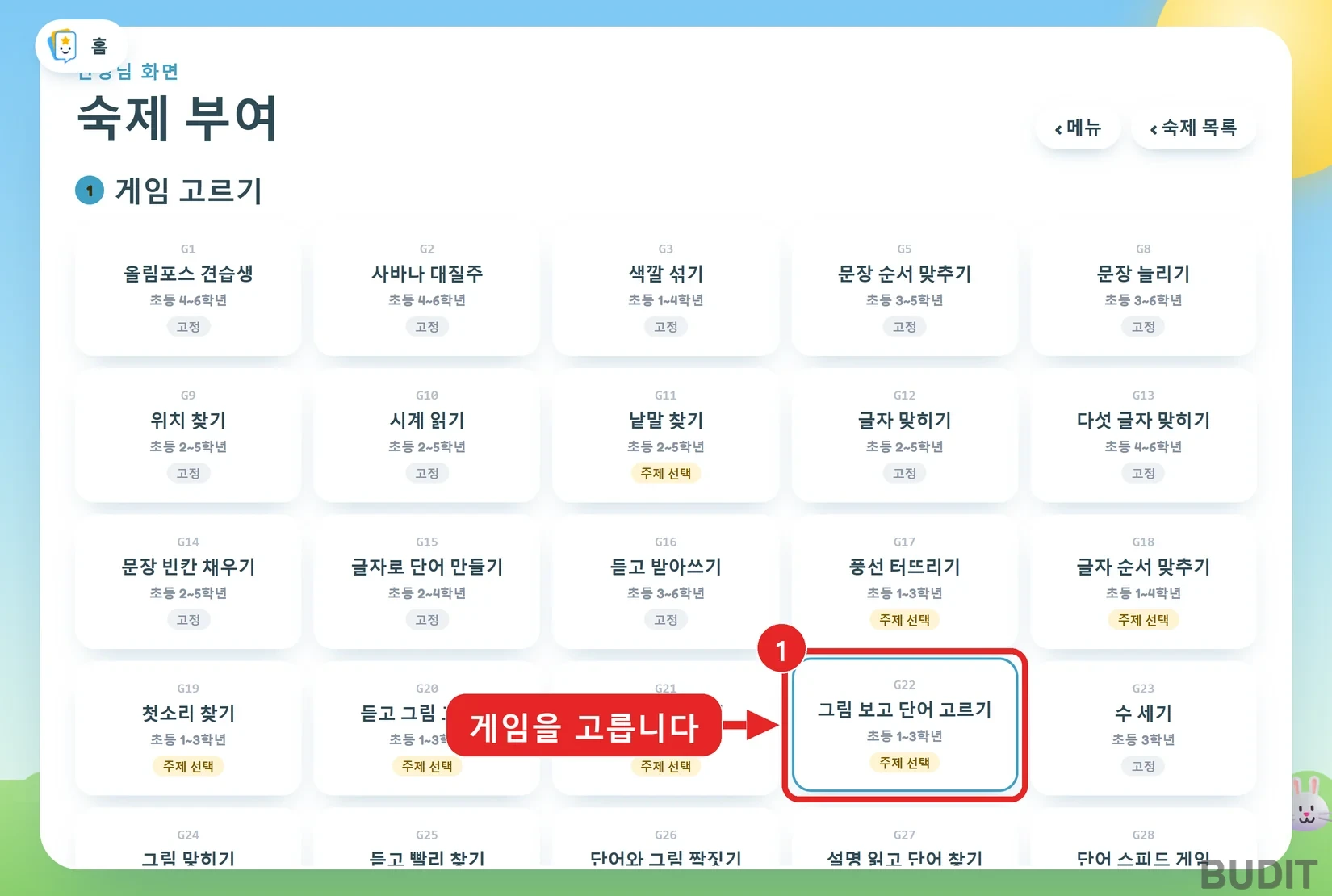
Screen: step 1 『게임 고르기』 (choose a game). Each tile shows the grade range and the kind.
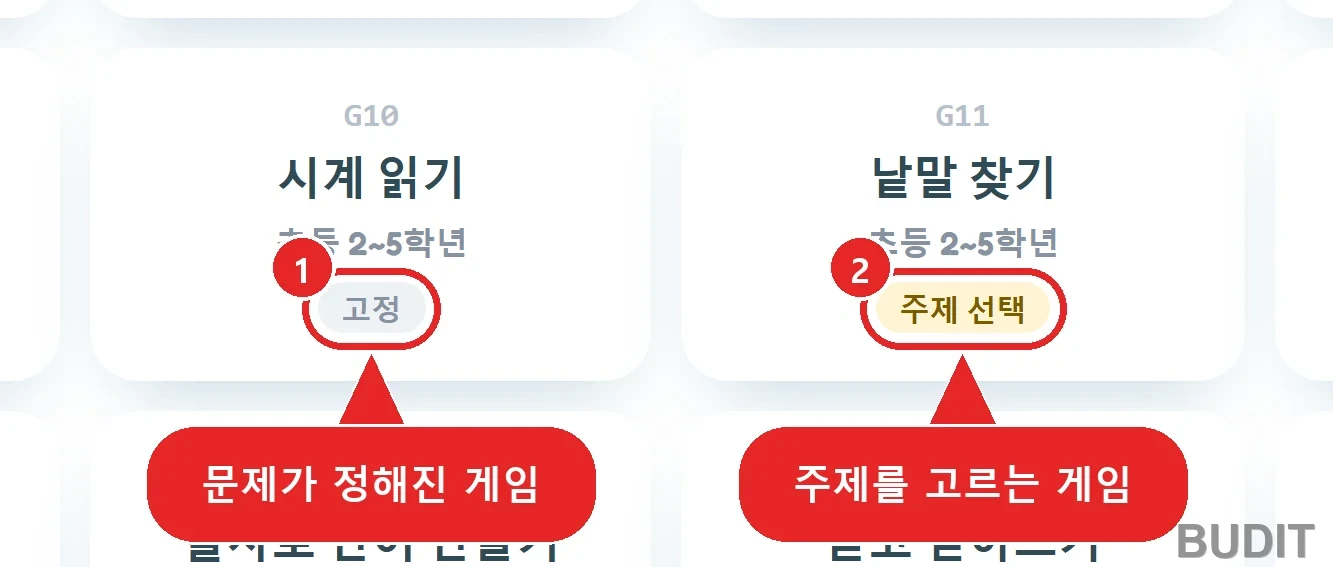
Screen: 『고정』 means the questions are fixed. 『주제 선택』 means you choose a topic.
Here are some of the topic games that teachers give most to younger students. The grades are the ones shown on the NoryCard screen.
| Game | Grade | What it is |
|---|---|---|
| 『그림 보고 단어 고르기』 Pick the word for the picture | Grades 1~3 | See a picture and pick the right English word. The most basic game. |
| 『듣고 그림 고르기』 Listen and pick the picture | Grades 1~3 | Hear a word and pick the picture. No letters appear at all, so a child who cannot read yet can play. |
| 『카드 짝 맞추기』 Card matching | Grades 1~3 | Match face down picture cards with word cards. The same word comes up many times. |
| 『풍선 터뜨리기』 Balloon pop | Grades 1~3 | A Korean meaning appears and the child pops the balloon with that word. It measures how fast a word comes to mind, not only whether it is known. |
| 『첫소리 찾기』 First sound | Grades 1~3 | See a picture and pick the letter the word starts with. |
| 『설명 읽고 단어 찾기』 Read the clue | Grades 4~6 | Read an English description and pick the picture of that word. The answer word never appears in the clue. |
Step 2, choose a topic. About 60 topics appear with a picture and a word count: animals, food, family, school, things at home, clothes, sports, vehicles, jobs, places, nature, weather, feelings and more (60 topics and about 1,400 words as of Sep 22, 2026, and topics keep growing). Large topics are split into 『동물 1』, 『동물 2』 (animals 1, animals 2) so that one homework carries 20 to 30 words. Each game needs a minimum number of words, and topics that are too small for that game are hidden.
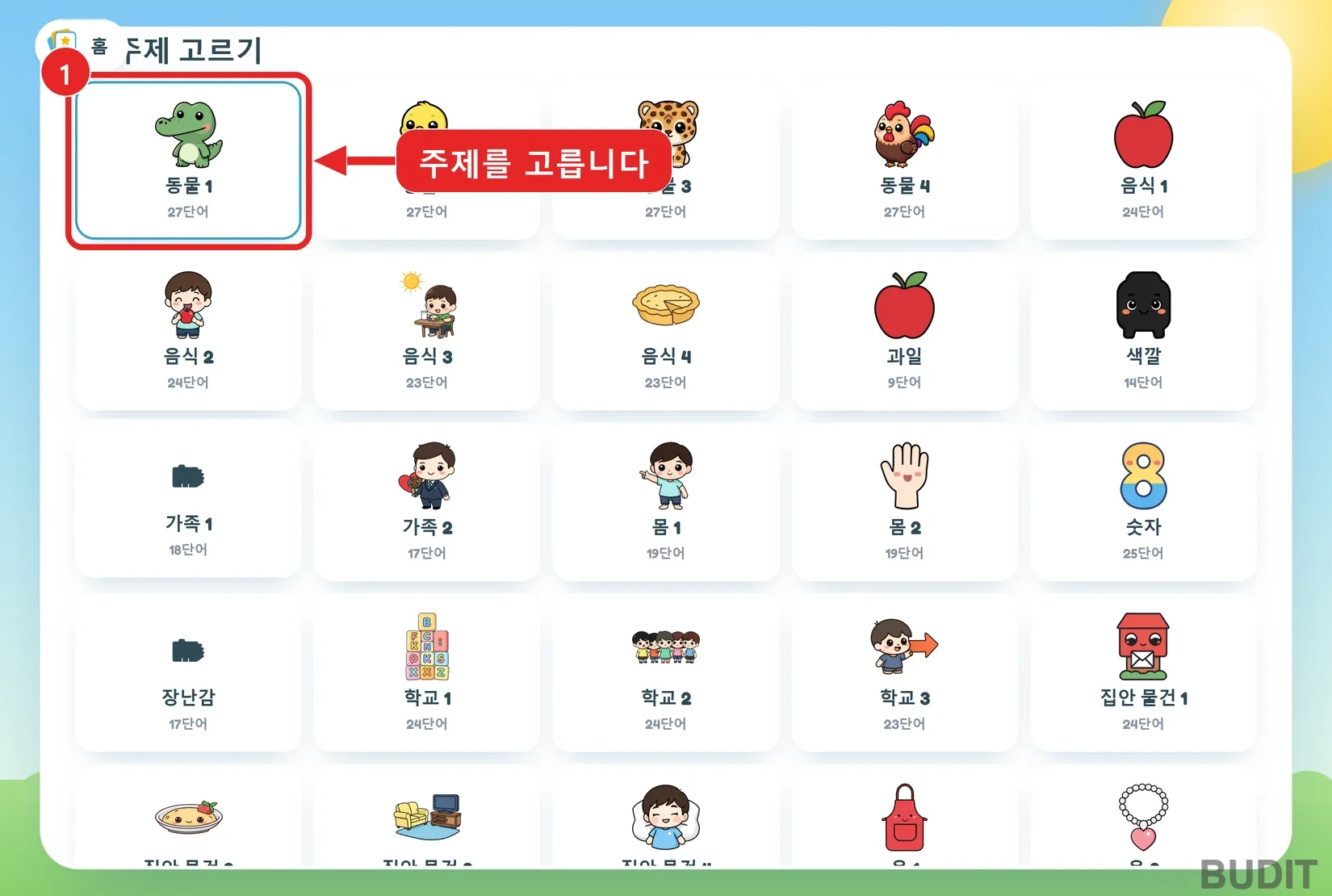
Screen: step 2 『주제 고르기』 (choose a topic). 『동물 1』 (animals 1) has 27 words.
Step 3, name it. Type a homework title and, if you like, one line for the kids. Press 『숙제 링크 만들기』 (make the homework link) and the link is ready.
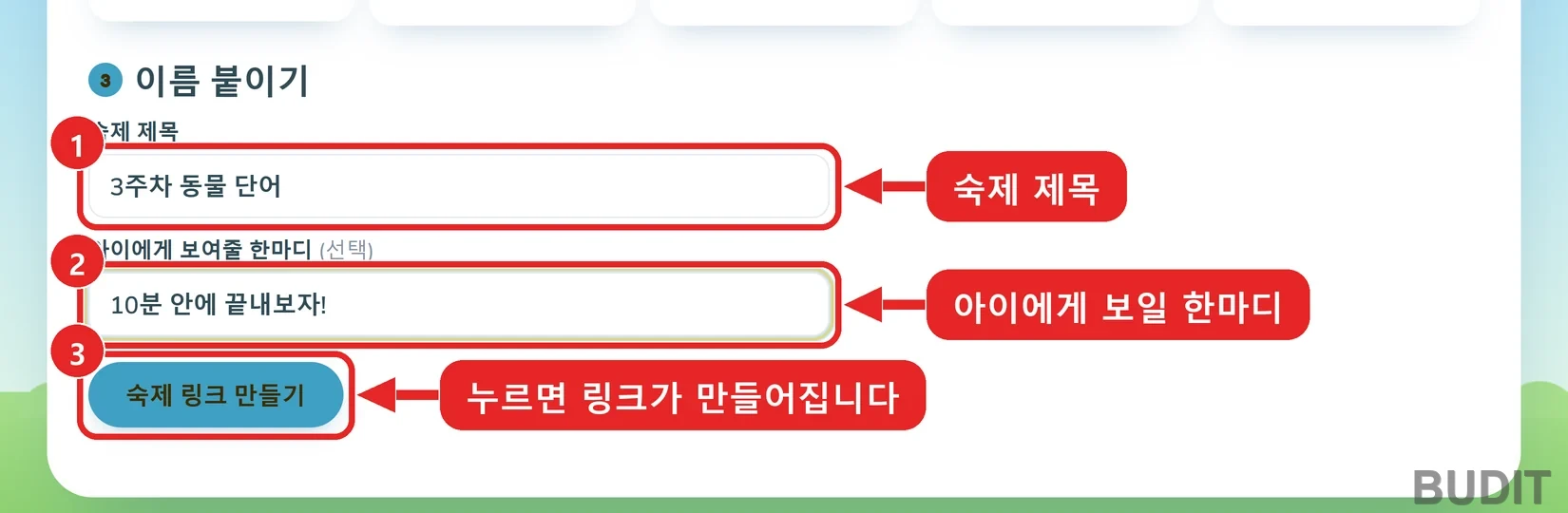
Screen: step 3 『이름 붙이기』 (name it). The title is reused on the results screen and in the spreadsheet file name.
Once the link is made, press 『링크 복사』 (copy link) and paste it into your class chat or notice. You can copy it again any time from the homework list.
Pick words: only this week's words
If this week's words are spread over animals, food and school, one topic will not do. 『낱말 골라 만들기』 lets you collect words one by one from any topic and build a game from only those.
- 『낱말 찾아 담기』 Search and collect: type a word in English or Korean and it appears with its picture. Press to collect it, press again to remove it.
- 『그림 화풍』 Art style: choose cartoon, watercolor, 3D, sticker, crayon or realistic, and the game runs with pictures in that style.
- 『담은 낱말』 Collected words: the basket at the top shows what you collected, in order. Remove one with ✕ or all with 『전부 비우기』 (empty all). Questions come out in the order you collected.
- 『게임 고르기』 Choose a game: only games that fit the number of collected words appear. A game needs 6 to 10 words or more, and when there are too few the screen says how many games are hidden.
- 『이름 붙이기』 Name it: type a title and press the make link button.
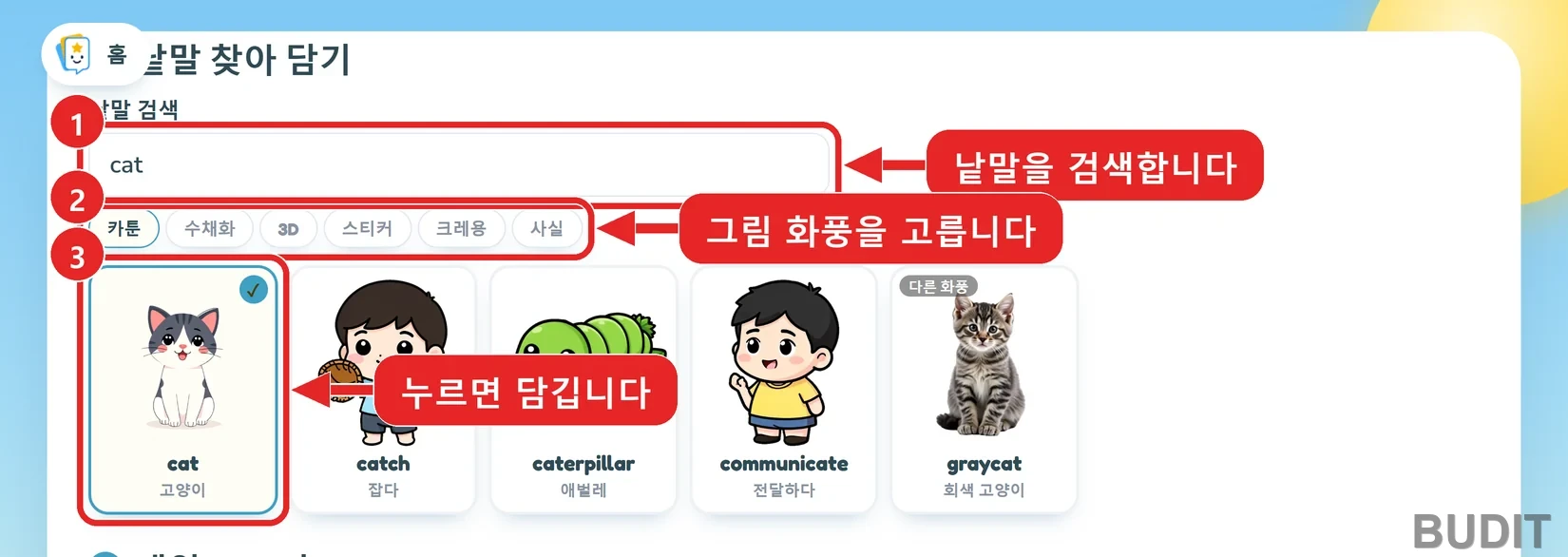
Screen: search results in 『낱말 골라 만들기』. Searching cat also brings up cat, catch and caterpillar.
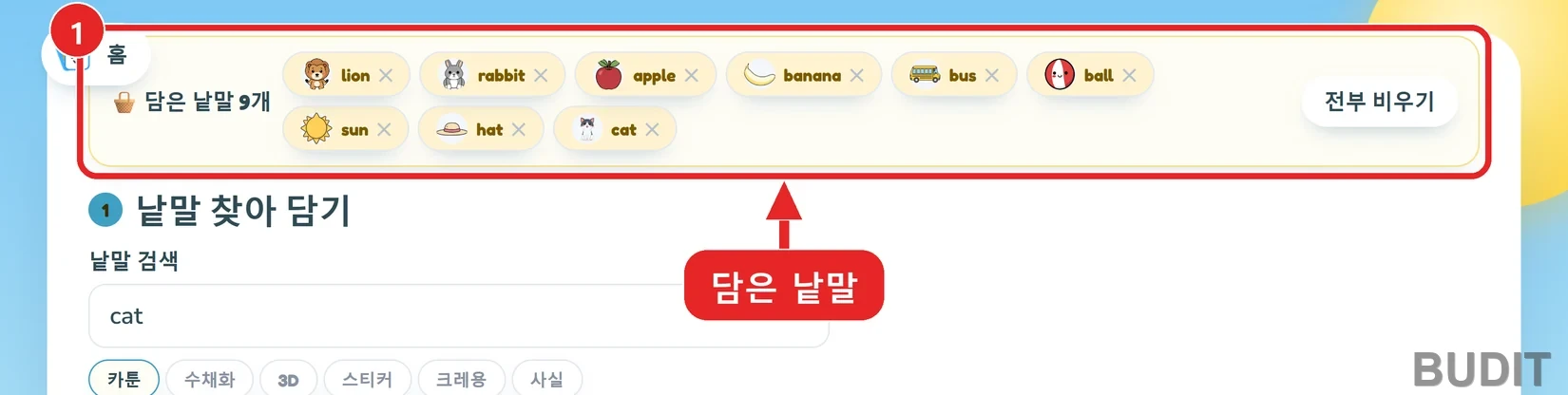
Screen: the basket of collected words. Nine words from different topics in one homework.
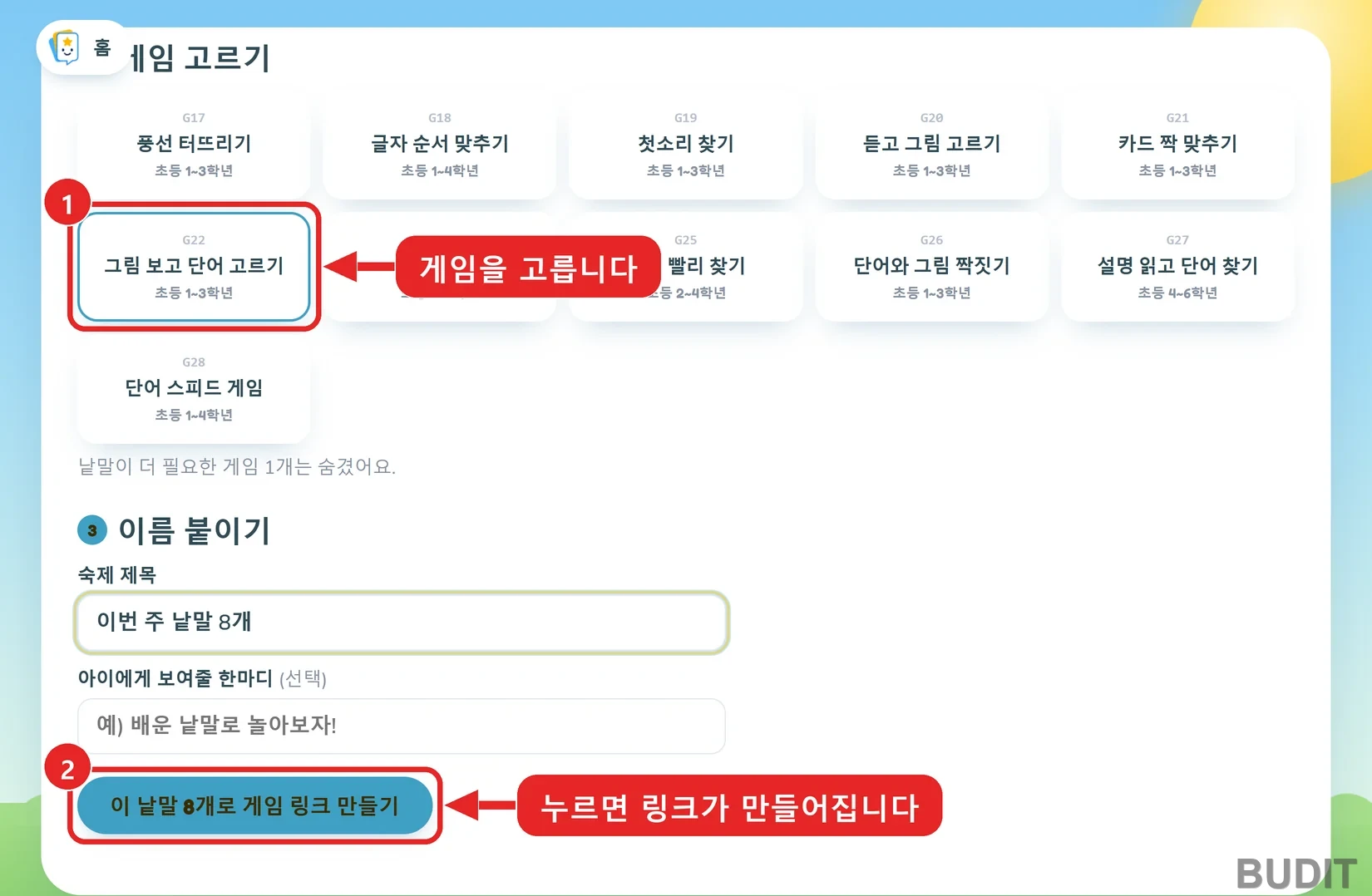
Screen: choosing a game and making the link with 8 collected words. The screen notes that one game needing more words is hidden.
Kids only open the link
Kids do not sign up or log in to NoryCard. The link opens the game full screen, and the game starts as soon as they type a name. The first instruction is spoken in English, so keep the sound on. The 『전체화면』 (full screen) button at the bottom right shows only the game on a tablet. The same link can be played many times and every round is kept.
Results: who missed which word
Choose a homework in 『결과 보기』 and the report opens. It is more than a score board. Four things appear together.
- 『학생별』 By student: name, best score, accuracy and number of rounds. Every round is saved, and the score shown is the best one.
- 『많이 틀린 단어』 Most missed words: for each word, how many times it was missed and by whom. The words to review next lesson are right there.
- 『반복되는 오답 패턴』 Repeated error patterns: repeated misses within the same rime (cat, hat) or the same first sound are grouped separately.
- 『시도 상세』 Round details: for each round, every question with the correct answer, the chosen answer and the time taken.
Above the report, 『성적표 엑셀』 gives one line per student and 『문항 상세 엑셀』 one line per question. Both are CSV files that open directly in Excel. Slips of the hand, such as tapping the wrong card by accident, are treated as "clumsy" rather than "did not know" and left out of the accuracy figure.
What you can do in the homework list
| Button | What it does |
|---|---|
| 『링크 복사』 Copy link | Copies the link for the kids again. |
| 『리포트』 Report | Opens the results of that homework. |
| 『닫기』 Close | Stops kids from entering. Submitted records stay. |
| 『삭제』 Delete | Deletes the homework together with its records. This cannot be undone. |
Try it like this
- 『Weekly review』: on Friday, collect this week's words with pick words and assign 『그림 보고 단어 고르기』. On Monday, start from the most missed words.
- 『For a child who cannot read yet』: begin with 『듣고 그림 고르기』, which shows no letters, and move to 『카드 짝 맞추기』 once reading starts.
- 『Building speed』: if the words are known but slow, use 『풍선 터뜨리기』 or 『단어 스피드 게임』 (word speed game) to watch recall speed.
- 『Same homework for siblings』: at home, one link lets two kids play the same game, and the report shows them by name.
『NoryBook』, Budit's picture book service, uses homework links made the same way for its 『게임하기』 (play games) button. See what is in NoryBook and the NoryCard introduction for more.
For schools and companies
If you want accounts grouped by class or the games inside your own product, please contact Budit.
Screens and features are as of Sep 22, 2026 and may change as the service is updated. The red boxes, numbers and arrows in the screens are guide marks for this post and are not part of the real screens.